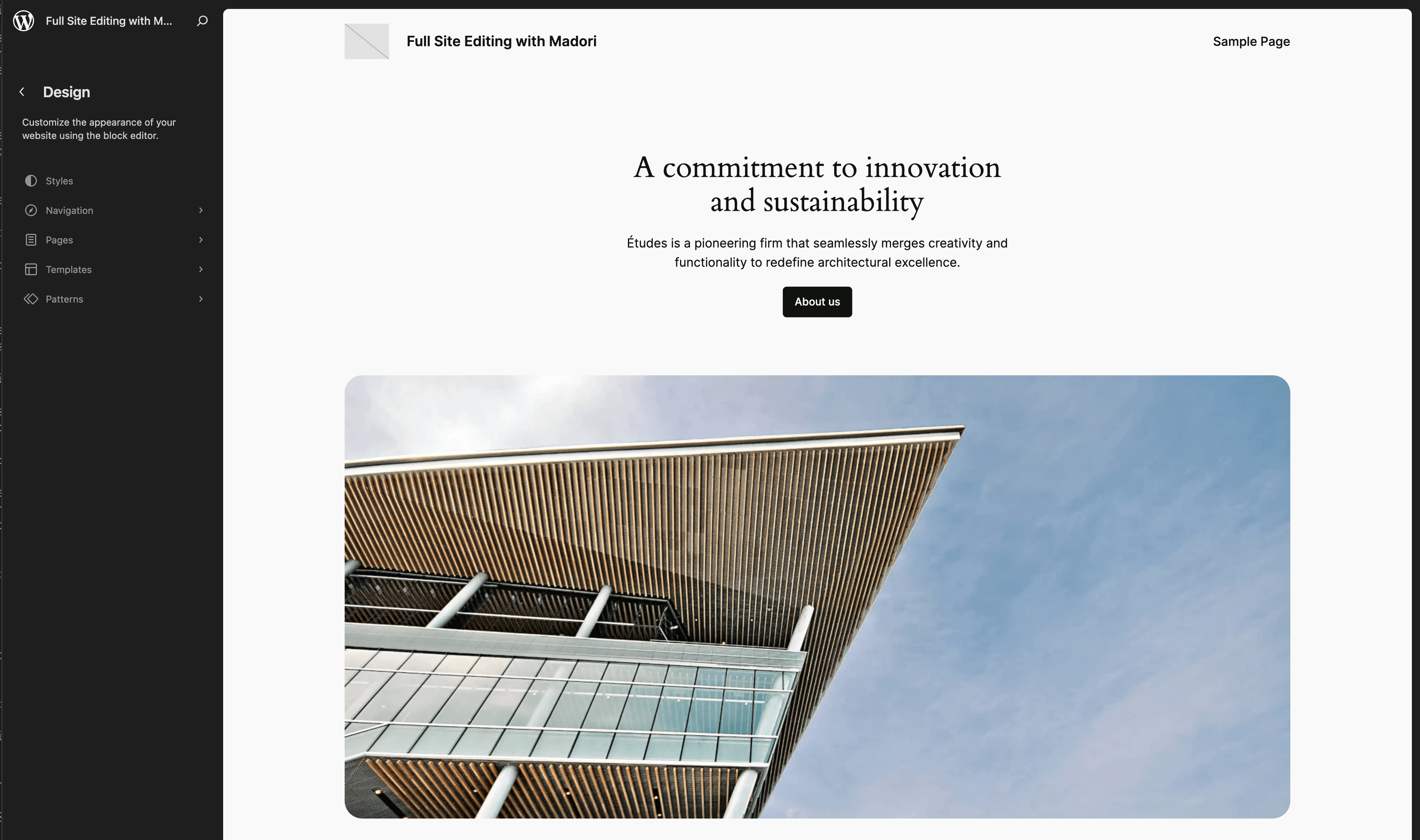
Gutenberg has been WordPress's default editor since version 5.0, released in late 2018. Seven years later, millions of sites are still running on Classic Editor. If yours is one of them, it's time to give this some serious thought. The Classic Editor plugin is living on borrowed time, modern themes and plugins are built for Gutenberg, and the Site Editor is only accessible through the block editor.
This guide walks you through the migration, from preparation to launch day. No rushing, no nasty surprises.
Why migrate now
A quick look back. When Gutenberg landed with WordPress 5.0 in December 2018, the community's reaction was, let's say, mixed. The editor was still young, buggy in places, and imposed a radical change in how content was created. WordPress then released Classic Editor as an official plugin, promising to maintain it "at least until 2022." Then 2022 became 2024. Then 2024 became "as long as necessary." We're in 2026 and the plugin is still there, but its official page is clear: maintenance-only mode. No new features, just security patches when needed.
The entire WordPress roadmap is built on Gutenberg. Block themes, patterns, the Site Editor: all of it requires the block editor.
Here's what happens if you don't migrate:
- Modern themes (including the defaults Twenty Twenty-Four, Twenty Twenty-Five, and Twenty Twenty-Six) are designed for Gutenberg. They work poorly, or not at all, with Classic Editor.
- More and more plugins are dropping support for the classic editor. New plugins are built for the block editor first.
- You can't use the Site Editor, which lets you visually edit your entire site (header, footer, templates) without touching code.
- The WordPress community is focusing its efforts on Gutenberg. Resources, tutorials, and support are all moving in that direction.
You will have to migrate eventually. Better to do it now, on your own terms, than to scramble when Classic Editor breaks with a major update.
Preparing the migration
Don't deactivate Classic Editor on a Friday evening hoping everything will be fine. A migration needs preparation.
Auditing your existing content
First, take inventory of what makes up your site:
- Shortcodes (
[contact-form], [gallery], [slider]...): you'll need to check they're compatible with Gutenberg or find block-based alternatives.
- Page builders: if you're using Elementor, Divi, or WPBakery, the migration is a project in itself (more on that below).
- Custom fields built with ACF, Meta Box, or Pods need special attention. Most work with Gutenberg, but adjustments may be needed.
- Legacy content: some very old pages may contain raw HTML or formatting that won't convert cleanly.
Backing up your site
No excuses here. Make a full backup before you touch anything: files, database, everything. If you're not sure how, our guide on how to duplicate a WordPress site covers the available methods.
Setting up a staging environment
Never test the migration directly on production. Create a copy of your site on a staging environment (most good hosts offer this feature with one click). You can clone your site there and test the migration risk-free.
Checking plugin compatibility
This is the step many people skip, and it's often where problems come from.
Plugins that cause issues
Some plugins are known not to play well with Gutenberg:
- Older form plugins that rely solely on shortcodes with no dedicated block.
- Very old SEO plugins that haven't been updated for the block editor (the major ones like Yoast and Rank Math have been compatible for years).
- Gallery and slider plugins that haven't introduced native blocks.
Finding Gutenberg-native alternatives
For each incompatible plugin, look for an alternative that offers a native Gutenberg block. Most plugin categories now have options built for the block editor: forms (WPForms, Gravity Forms), galleries (native WordPress block, Lightbox Block), tables (native block, TablePress), and so on.
The ACF and Gutenberg situation
Advanced Custom Fields works with Gutenberg. ACF Pro even lets you create custom Gutenberg blocks from your field groups. If you use ACF extensively, switching to Gutenberg can make the editing experience noticeably better for your content team.
Make sure you're running the latest version of ACF and test the rendering of your fields in the block editor on your staging site.
Migrating step by step
Your staging is set up, your plugins are compatible, your backup is done. Let's go.
Activating Gutenberg
If Classic Editor is installed as a plugin, simply deactivate it. Gutenberg is built into the WordPress core — there's nothing to install. If you forced the classic editor through your functions.php file or a mu-plugin, remember to remove that code.
Converting existing content
When you open an existing post or page in Gutenberg, WordPress automatically places it in a "Classic block." This block wraps your old content as-is. It works, but it's not the goal.
You have two options:
- Automatic conversion: in the Classic block, click the menu (three dots) then "Convert to Blocks." WordPress does its best to split the content into appropriate blocks. This works well for simple content (text, images, lists).
- Manual conversion: for complex pages, rebuild the content block by block. It takes longer, but the result is cleaner, and you can take the opportunity to modernize the layout.
Our recommendation: use automatic conversion for simple blog posts, and manual conversion for important pages (homepage, services, landing pages).
Testing page by page
Yes, it's tedious. No, you can't skip it. After conversion, check each page:
- Content displays correctly on the frontend
- Images are properly positioned
- Forms work
- Remaining shortcodes render correctly
- Responsive layout is preserved
Start with your most-visited pages (Google Analytics will tell you which ones), then work through secondary pages.
Essential blocks to know
Gutenberg offers dozens of blocks. Here are the ones you'll use daily:
- The paragraph, the most basic block. Each paragraph is independent, so you can reorder them freely.
- Image: drag and drop or select from the media library. Handles resizing, alignment, and alt text.
- Heading (H2, H3, H4...). Good heading hierarchy matters for SEO and readability alike.
- Columns: multi-column layouts without CSS, from 2 to 6 columns.
- Group: wrap several blocks to give them a shared style (background color, padding, border).
- Buttons for calls to action, with built-in styling options.
- Reusable Blocks: create a block once, use it everywhere. Edit it, and it updates everywhere. Handy for CTAs or recurring info boxes.
- Patterns: pre-configured block compositions. WordPress ships some, and you can create your own.
The rest comes with practice. Once you get the "everything is a block" logic, you find your way around fast.
The real drawbacks of Gutenberg
Gutenberg isn't perfect. We're not going to pretend it is.
If you've been using the classic editor for years, the transition takes some adjustment. The block-based approach changes your reflexes. Actions that took two seconds (inserting an image into text, for example) require an extra click or two at first. After a week of daily use, most people are back up to speed.
For pure writing (a blog post without complex layout), the classic editor was efficient in its simplicity. Gutenberg adds a layer of structure that can feel unnecessary when you just want to write text. Gutenberg does more, so it asks a bit more of you.
On the technical side, classic meta boxes work in Gutenberg, but they're pushed below the editor or into a sidebar panel. The integration isn't always elegant. ACF Pro solves this by letting you create native blocks, but that requires additional configuration.
Gutenberg vs Classic Editor: the comparison
| Criteria | Classic Editor | Gutenberg |
|---|
| Ease of use | Simple, familiar | Richer, initial learning curve |
| Layout flexibility | Limited without a page builder or CSS | Native, with columns, groups, and patterns |
| Rendering performance | Depends on shortcodes and plugins | Cleaner HTML, fewer dependencies |
| Theme compatibility | Classic themes only (declining selection) | Classic themes + block themes |
| Site Editor | Not compatible | Compatible |
| Reusable blocks | Non-existent | Built-in |
| Media management | Basic | Advanced (drag & drop, extended alignments) |
| Support and future | Maintenance only, planned end of life | Active development |
If you're questioning the CMS choice itself, our article on how to choose your CMS covers that ground.
Special case: sites built with page builders
If your site was built with a page builder, migrating to Gutenberg is a more substantial project. Content created in Elementor, Divi, or WPBakery is stored in a proprietary format that doesn't convert directly to Gutenberg blocks.
Elementor
Elementor offers limited export to Gutenberg, but the results are rarely satisfying. In most cases, you'll need to rebuild pages manually. The good news is that Gutenberg with plugins like Stackable or Spectra can now replicate the majority of Elementor layouts.
Divi
Divi stores content in proprietary shortcodes. Deactivating Divi without migrating first will display a mess of raw shortcodes on your pages. Conversion plugins exist (like Flavor), but manual reconstruction of important pages remains the most reliable approach.
WPBakery
Same situation as Divi. WPBakery content is based on proprietary shortcodes. Migrating to Gutenberg requires page-by-page reconstruction. This is actually a chance to simplify: many layouts created with WPBakery years ago can be reproduced with native Gutenberg blocks, and they'll be lighter.
In all three cases, the migration is also an opportunity to rethink your site's structure. If your pages haven't been updated in years, now is the time.
After the migration
The technical migration is done. A few more steps to wrap things up properly.
Deactivating Classic Editor
Once all your content has been migrated and tested, deactivate and delete the Classic Editor plugin. Keeping it active "just in case" only delays the inevitable and can create conflicts.
Training your content team
If other people contribute to your site's content, take the time to train them on Gutenberg. The editor is easy to pick up, but old habits die hard. A 30-minute session is usually enough to cover the essential blocks and common actions (moving a block, transforming a block, using patterns).
Setting up a content workflow
Gutenberg opens possibilities that didn't exist with Classic Editor. Take advantage of them to structure your workflow: create patterns for recurring content types and set up reusable blocks for common elements.
And above all, make sure your site gets regular maintenance. Gutenberg updates are frequent and regularly bring new features and fixes.
Should you migrate? Our recommendation by profile
We've been working with WordPress clients for years. We saw Gutenberg in its early days, when staying on Classic Editor was a legitimate choice. That's no longer the case. The longer you wait, the harder the migration gets, because the gap keeps widening.
- Simple blog or light brochure site: migrate now. The conversion will be quick. A few hours is enough in most cases.
- Brochure site with structured content: plan the migration over a few days. Use the opportunity to clean up and modernize your pages.
- E-commerce site (WooCommerce): WooCommerce works very well with Gutenberg. If you have heavy customizations tied to Classic Editor, get professional help. Otherwise, go for it.
- Site with a page builder (Elementor, Divi, WPBakery): this is the most complex case. Migration often means partial reconstruction. Worth it, but plan a realistic budget and timeline.
- Custom site with lots of custom fields: evaluate your fields' compatibility with Gutenberg. ACF Pro simplifies the transition. A WordPress developer can give you a precise estimate of the work involved.
WordPress remains the dominant CMS, and Gutenberg is where it's heading.
If your site has more than 50 pages, uses a page builder across the board, or relies on complex custom fields, the cost of a professional migration is more than offset by the time saved and problems avoided.
Want some guidance? Get in touch. We'll assess the complexity together and put together a plan that fits your situation.