

Migrating from Classic Editor to Gutenberg: the complete guide
Gutenberg has been WordPress's default editor since 2018, yet millions of sites still rely on Classic Editor. Comparison, drawbacks, and step-by-step migration guide.
Read more →
By Aurélien Debord · · updated on March 3, 2026
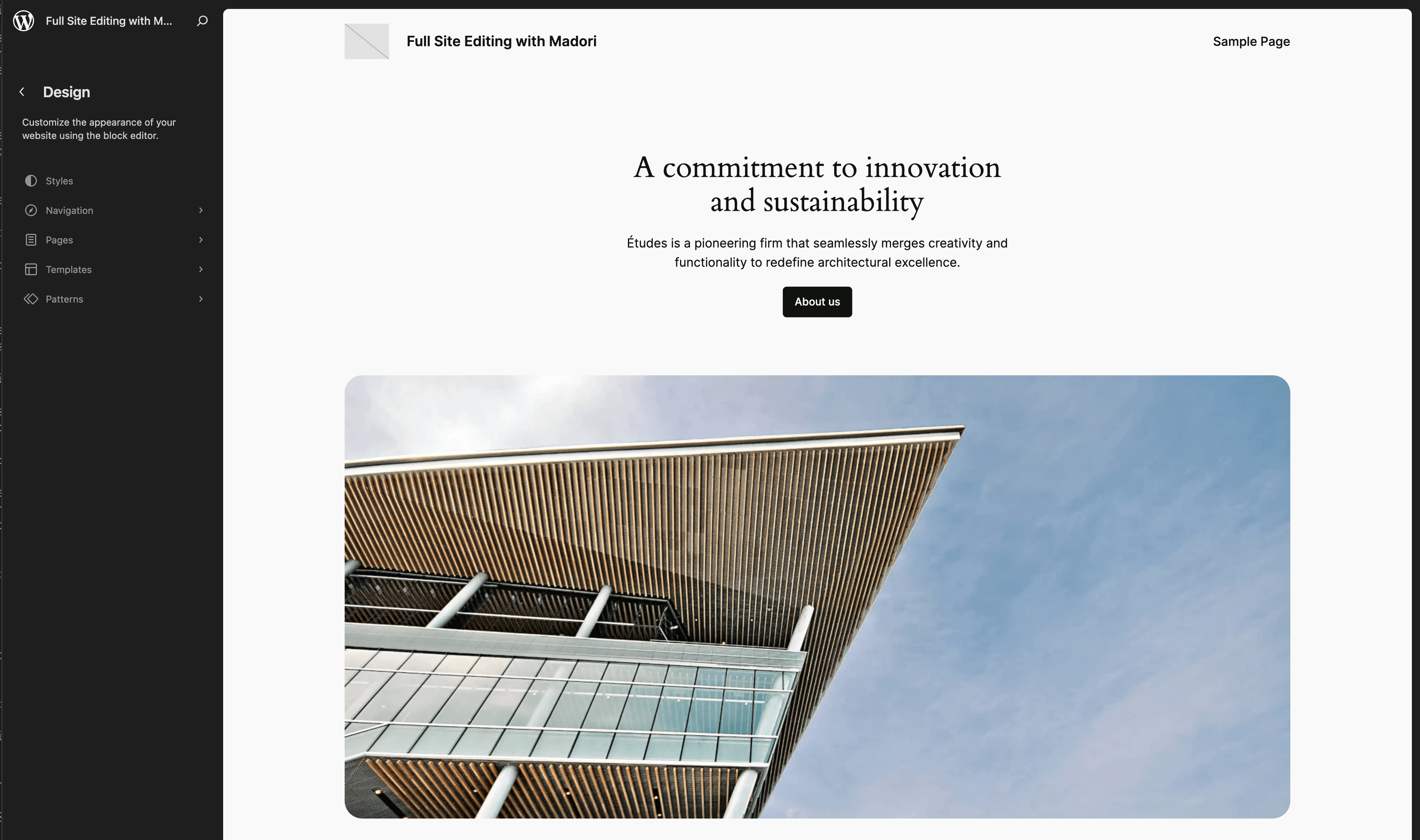
Until now, Gutenberg let you edit the content of your pages and posts with blocks. The header, the footer, the sidebar, page templates? Those required digging into theme code or using a page builder. With the Site Editor (formerly Full Site Editing), that's over: the entire site becomes visually editable, using the same block logic.
It's a major shift for WordPress. And it's already here.
The Site Editor is the ability to visually modify every part of your WordPress site, not just the content within pages. The header, the footer, post templates, archive pages, the 404 page: all of it can be modified directly in the editor, without touching a single line of code.
To understand the difference: Gutenberg (the block editor) lets you create and edit content inside a page. The Site Editor extends that logic to the very structure of the site. Gutenberg let you decorate the rooms. The Site Editor gives you access to the walls and the roof.
Technically, the Site Editor is built on Gutenberg. It's a natural extension of the block editor, not a separate tool. If you're not yet using Gutenberg, check out our Gutenberg migration guide to understand the stakes.
The Site Editor comes with its own vocabulary. Here are the key notions.
A block theme is a WordPress theme designed entirely for the Site Editor. Unlike classic themes that use PHP files to define structure (header.php, footer.php, single.php...), block themes use HTML templates composed of blocks.
WordPress's default themes since Twenty Twenty-Two have been block themes. That's the official direction.
Templates define the structure of a page type. The "Single" template defines how a blog post looks. The "Page" template defines how a standard page looks. The "Archive" template defines how post lists appear. With the Site Editor, you can modify these templates visually: rearrange elements, add or remove blocks, change the layout.
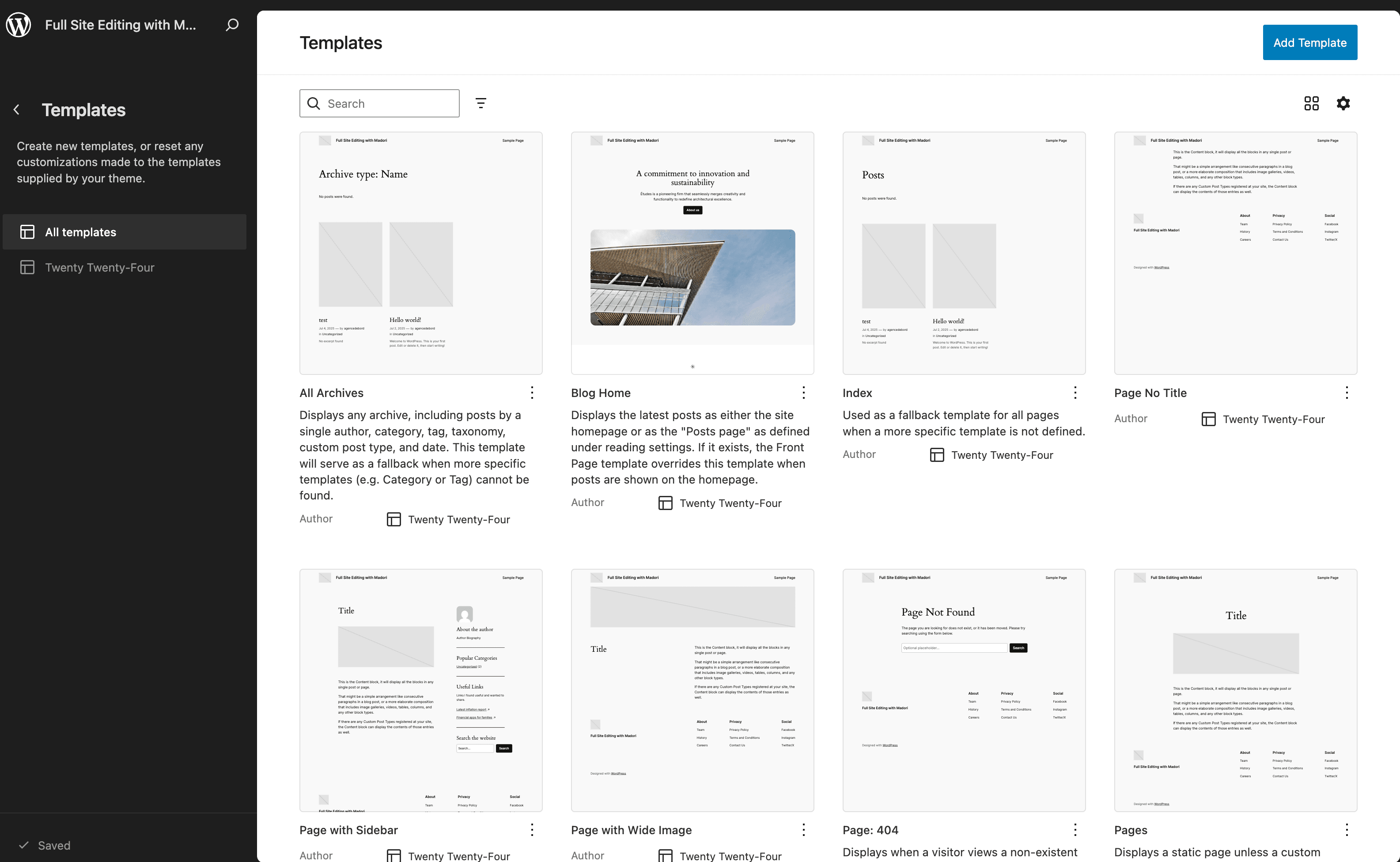
You can also create custom templates. Need a special layout for your landing pages? Create a dedicated template and assign it to the relevant pages.
Template parts are reusable pieces of a template. The header and footer are the most common examples. You create them once, then include them in your templates. Edit the header once, and it updates everywhere.
Global styles let you define your site's appearance from a single, centralized place: colors, typography, spacing, font sizes, button styles, and more. Instead of manually editing CSS or hunting through twenty different Customizer options, everything is grouped in one panel.
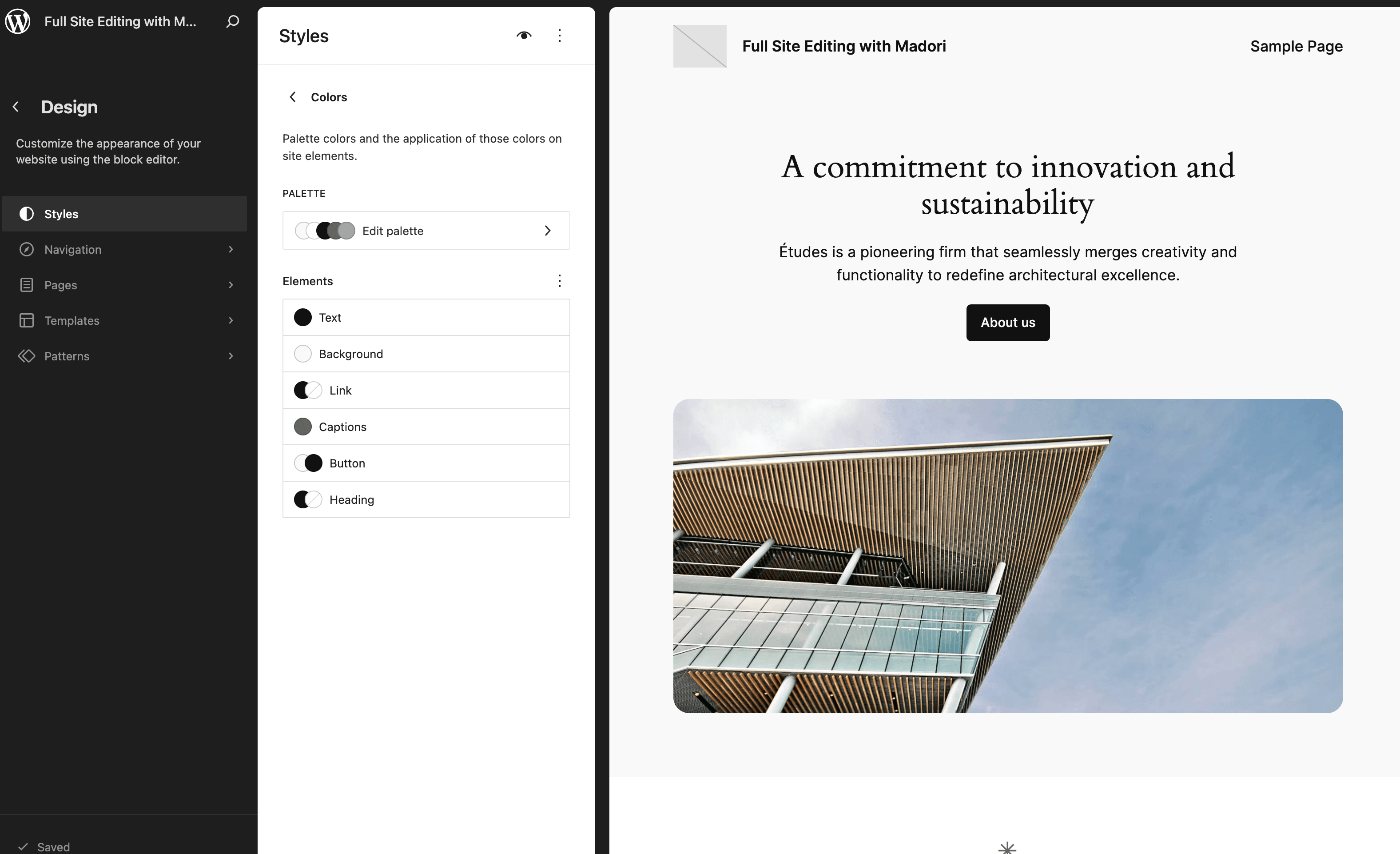
Change your primary color? It updates across the entire site. Modify the H2 heading size? Every H2 on the site follows suit.
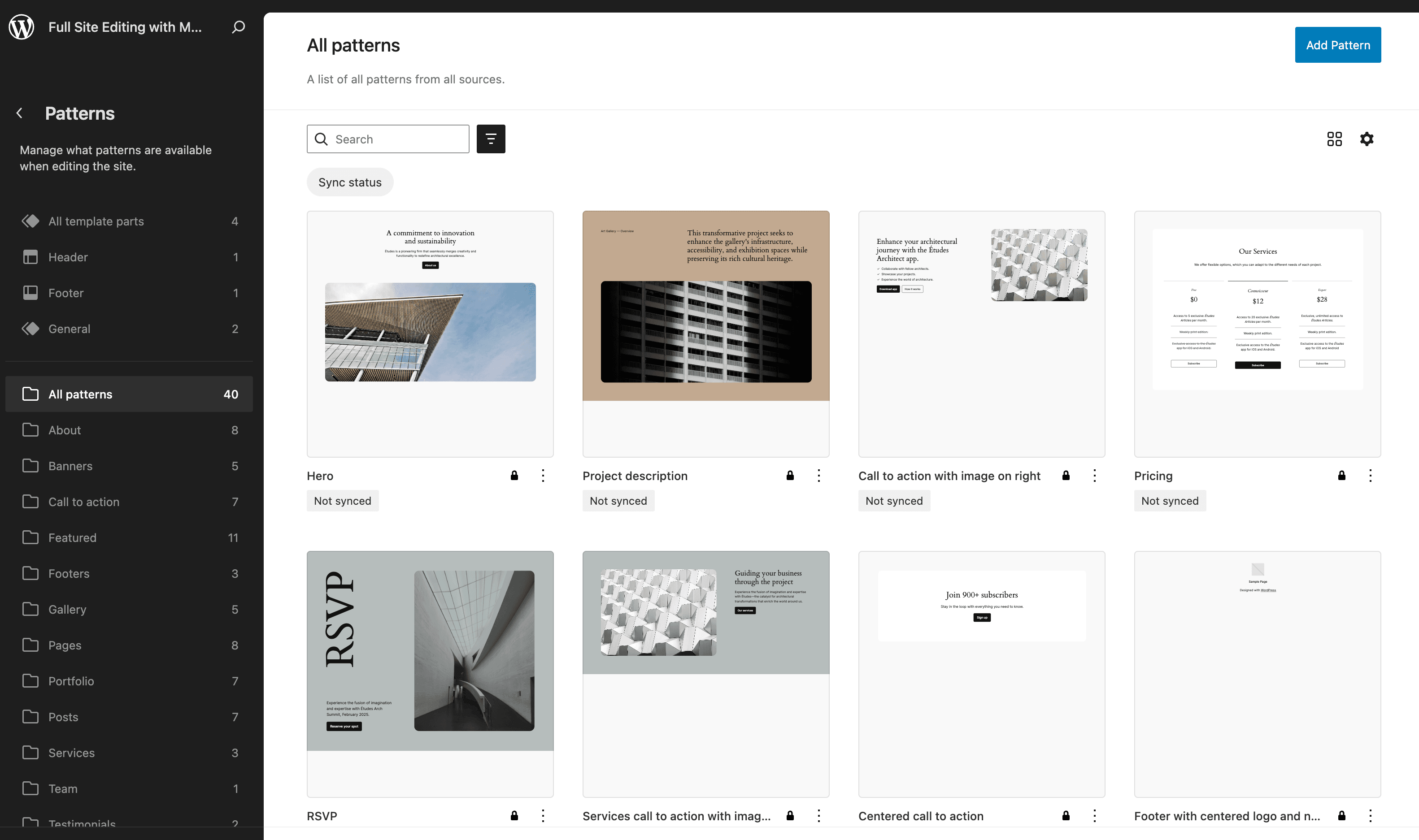
Patterns are pre-configured block assemblies you can insert with one click. WordPress includes some natively (a hero section, a feature grid, a testimonial...), and the community creates thousands more. You can also build your own to standardize your site's layout.
Enough theory. What does it actually change day to day?
This is probably the most appreciated change. With a classic theme, modifying the header meant editing a PHP file (header.php), adding CSS, or relying on the Customizer's limited options. With the Site Editor, you open the editor, click on the header, and modify it like any other content: add a logo, rearrange the menu, change colors, add a call-to-action button. Same for the footer.
Need a template without a sidebar for your landing pages? A template with a different header for your blog? A special template for your product pages? With the Site Editor, you create these templates visually, without writing a single line of code. You then choose which template to apply to each page.
No more one-off CSS edits to change a color or a font. Global styles centralize all of that. Define a color palette, font families, default sizes, and the whole site follows. When your brand guidelines evolve, you update one place.
We're not saying developers become useless (far from it). But for common visual adjustments (modifying a header, changing a color, rearranging a template), the site owner can act directly.
Block themes are at the heart of the Site Editor.
WordPress releases a new default theme each year. Since Twenty Twenty-Two, they've been exclusively block themes:
These themes aren't just demos. They're usable in production, and they evolve with each WordPress update.
A classic theme uses PHP files to define the site's structure. A block theme uses HTML files with blocks. The main difference for users: with a block theme, everything is editable in the site editor. With a classic theme, you're limited to the Customizer and theme options.
Check for a theme.json file at the root of your theme and a templates/ folder. If both are present, it's a block theme. You can also check in the WordPress admin: if the "Appearance > Editor" menu gives you access to the full site editor (not the Customizer), you're on a block theme.
If your current theme is classic, you can't use the Site Editor. You'll need to switch themes to take advantage of it, or wait for your theme developer to release a block version.
The question comes up often: does the Site Editor make page builders like Elementor, Divi, or WPBakery obsolete?
For brochure sites and blogs, the Site Editor covers the majority of needs. You can create varied layouts, customize the entire site, and manage styles globally. All without an extra plugin and without additional scripts to load.
Page builders offer advanced features that the Site Editor doesn't provide yet: complex animation effects, pixel-perfect design options, specialized widgets (counters, advanced sliders, interactive forms), and often a more extensive library of ready-made templates.
If your site requires highly elaborate layouts with lots of interactivity, a page builder remains relevant in 2026.
The Site Editor gains ground every year. The gap narrows with each WordPress update. For a new project today, we recommend starting with the Site Editor and only adding a page builder if the needs truly justify it. The performance and complexity overhead of a page builder is no longer warranted for the majority of sites.
The Site Editor is functional and production-ready, but it still has limitations.
The site editor interface can be confusing at first. The distinction between the content editor and the site editor isn't always clear to users. You can get lost sometimes, especially when navigating between templates, template parts, and global styles.
Some features are still under active development. WordPress adds improvements with each major release, which means the experience evolves regularly. That's positive long-term, but it can be unsettling if you're looking for absolute stability.
Documentation sometimes lags behind features. Things move fast, and tutorials don't always keep up. The community is active, but finding the right information for a specific version sometimes takes patience.
Finally, third-party block themes are still less numerous than classic themes. The selection is growing rapidly, but if you're looking for a highly specialized theme (restaurant, real estate, medical), you may find more options among classic themes for now.
It depends on your situation.
If you're building a site from scratch, go directly with a block theme and the Site Editor. It's the direction WordPress is heading, the tools are mature, and you'll end up with a lighter, faster site that ages better. It's also the right time to consider architecture: a headless WordPress setup is another option for projects requiring maximum flexibility.
If your site is running well on a classic theme, don't panic. You're not forced to change everything tomorrow. But keep the Site Editor on your radar. When your theme stops being maintained or when you plan a site redesign, that'll be the time to move to a block theme. In the meantime, start by migrating to Gutenberg if you haven't already.
If your site is built on Elementor, Divi, or WPBakery and it's working well, don't break things for the sake of switching to the Site Editor. However, if you're considering a redesign or your page builder is causing performance issues, it's the right time to evaluate the Site Editor as an alternative. For complex sites, a hybrid approach (Site Editor for structure, a few block plugins for advanced features) might be the best compromise.
Whatever your situation, make sure your site is properly maintained. Regular updates matter, whether you use the Site Editor, a classic theme, or a page builder.
Wondering if the Site Editor is right for your project, or need help with the transition? Let's talk about it. We'll give you a straight answer.
And at Madori
We code maintainable, fast WordPress sites, delivered with code access and Gutenberg training. Discover our WordPress agency.
See our development service →Free 60-second audit: performance, SEO, security and accessibility. No sign-up, instant results.
Discover our other WordPress tips
Gutenberg has been WordPress's default editor since 2018, yet millions of sites still rely on Classic Editor. Comparison, drawbacks, and step-by-step migration guide.

AI agents read, compare and are starting to buy on behalf of your visitors. Making your site "agentic ready" takes no magic file and no rebuild: it takes HTML that works without JavaScript, honest structured data, agents you actually let in and, for e-commerce, a real machine interface.

"There has been a critical error on this website": this message replacing your homepage is a fatal PHP error. Here's how to identify it, understand where it comes from, and fix it, cause by cause.

When advocating for a cause or being a member of an association or a non-governmental organization (NGO), it is important to have a website that quickly conveys the essence of your message and the values you uphold. Therefore, the design of your site should not aim for graphic originality at all costs but rather [...]